Teacher portal 101
Updated August 11, 2026
Classrooms
Classrooms connect a group of students with vocabulary sets you assign to them. Create one for each class, course, period, or tutoring group that needs its own students and learning material.
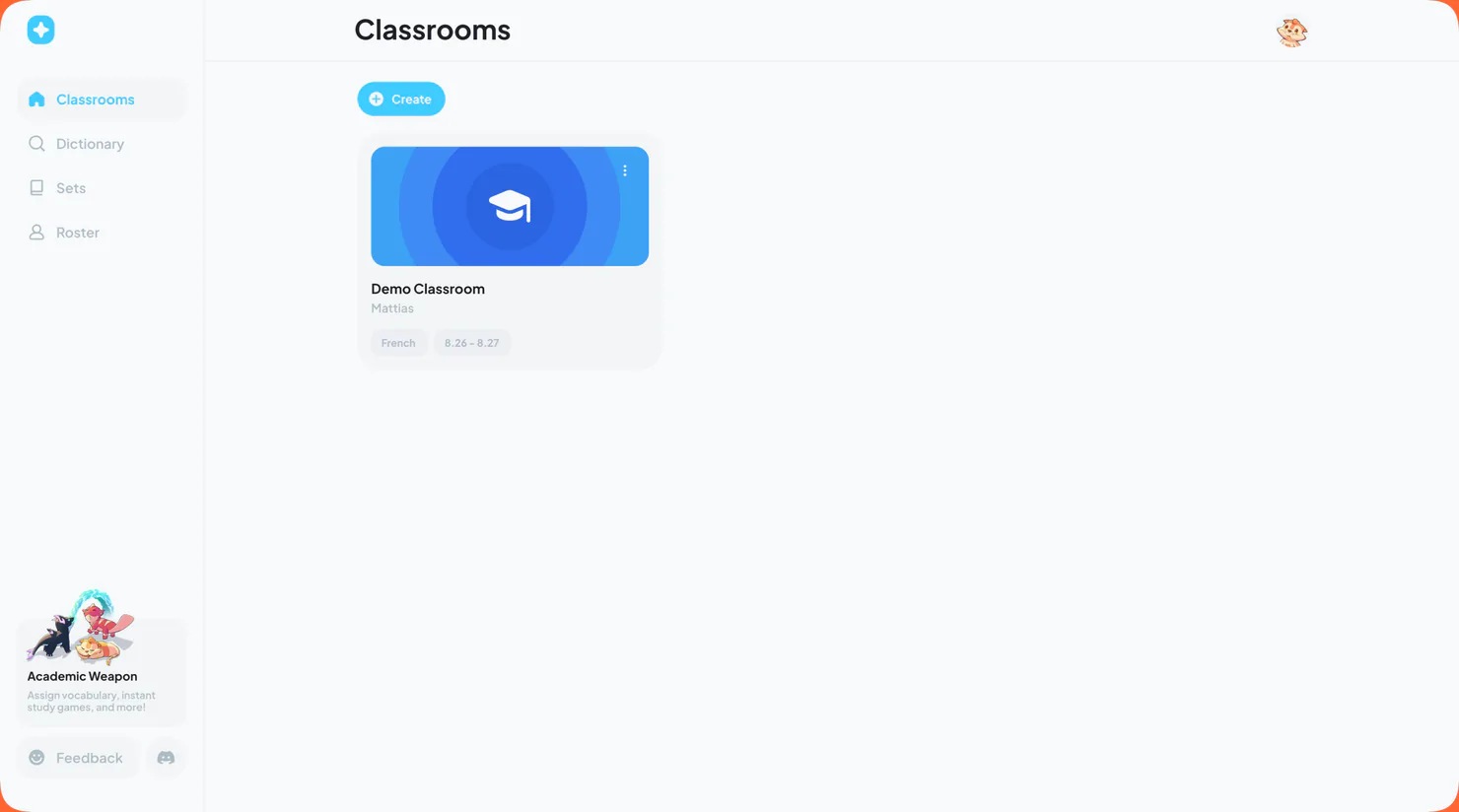
To get started with your first classroom, tap Create, give the classroom a clear name, and choose its start and end dates. Each classroom uses the language currently selected for your account.
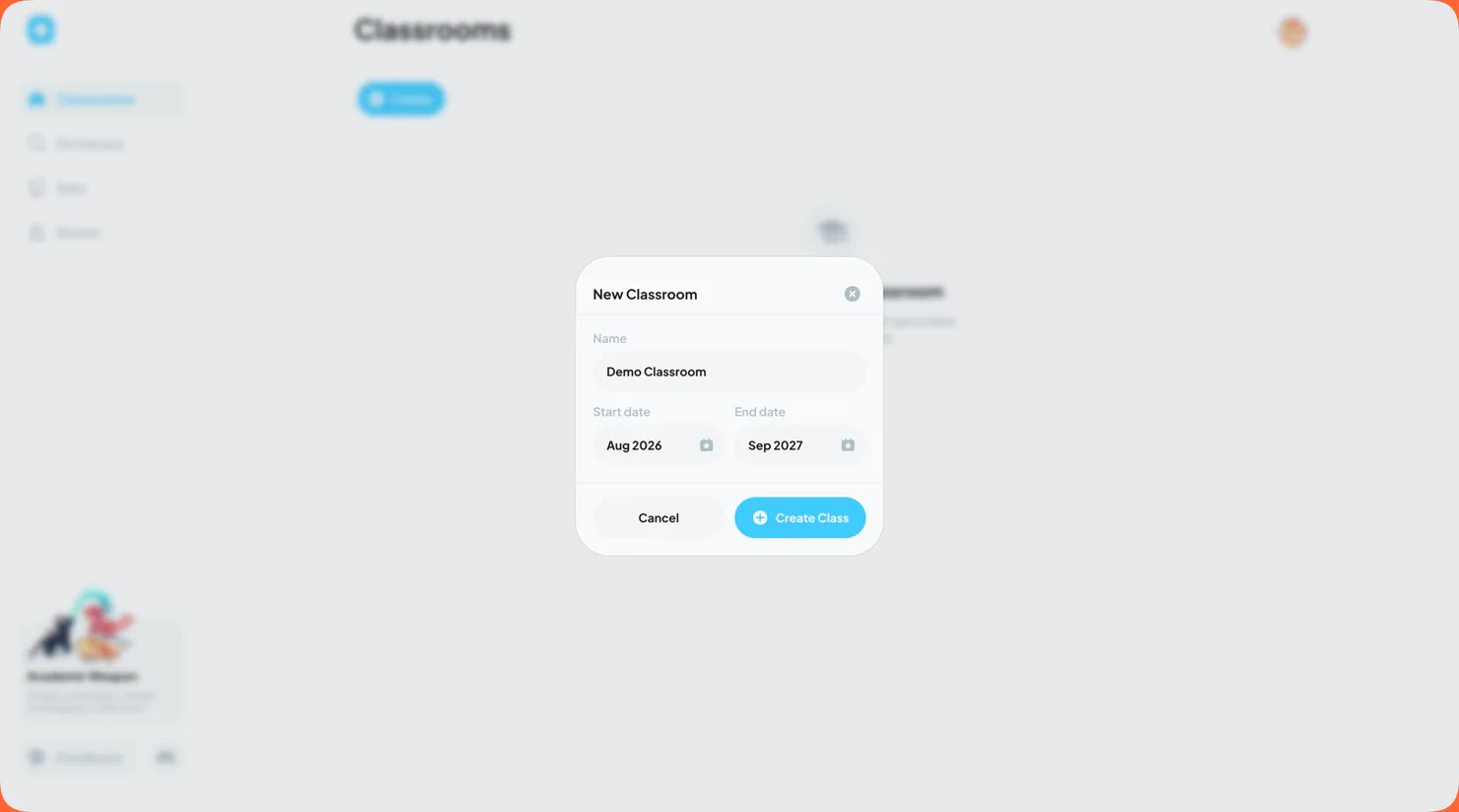
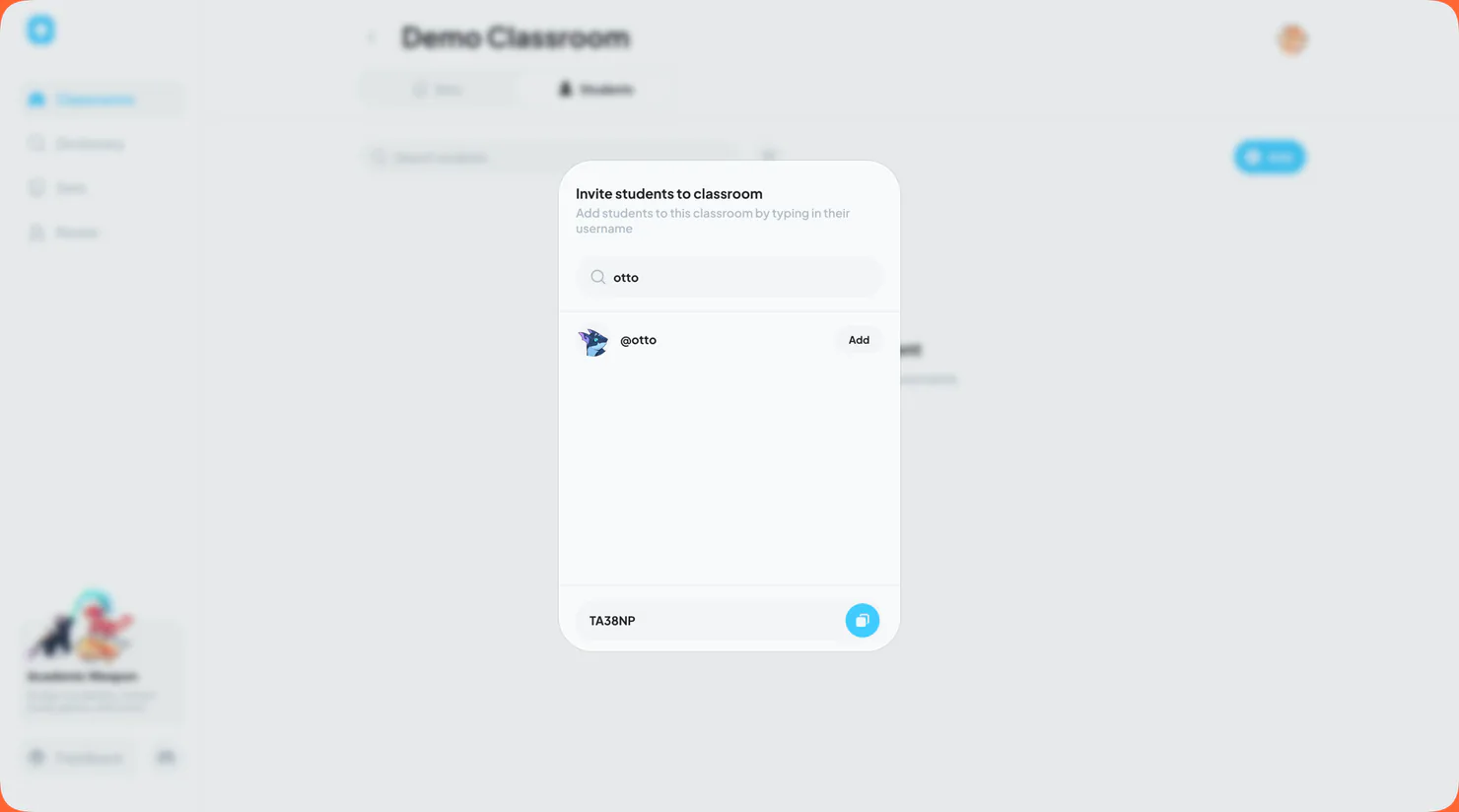
Every classroom has a unique code that you can share with students. Once they join, they appear in the Students tab and can access any vocabulary sets assigned to that classroom. You can also use the search bar to find students by username and add them manually.
Vocabulary Sets
A vocabulary set is a saved collection of words that students can study with. Press the Create button to make a new set and assign it to your desired classroom.
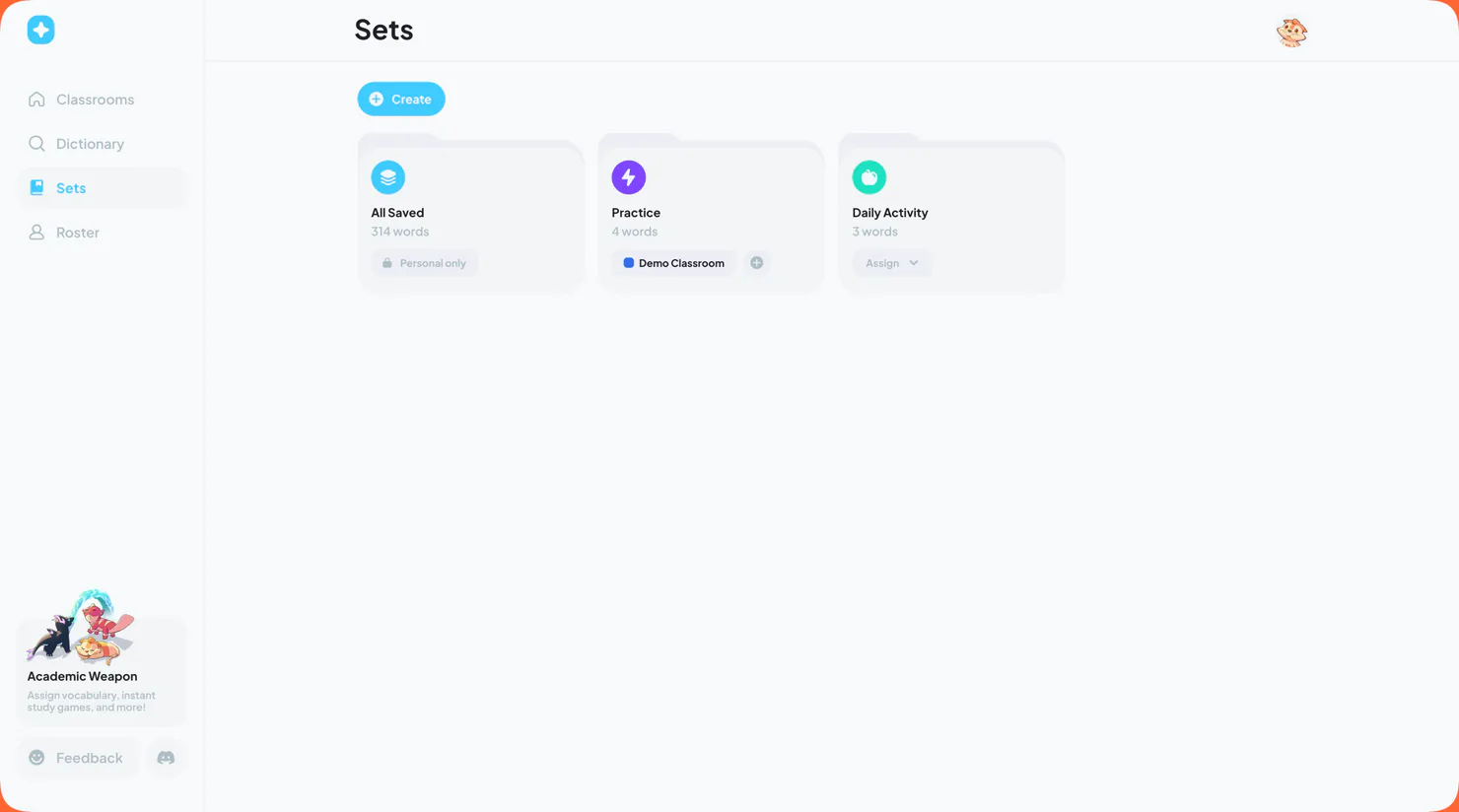
Assign the same set to one or more classrooms instead of creating duplicates. Students receive a view-only set that they can use to play activities, while you continue to manage the original set and its words.
Add Existing Sets
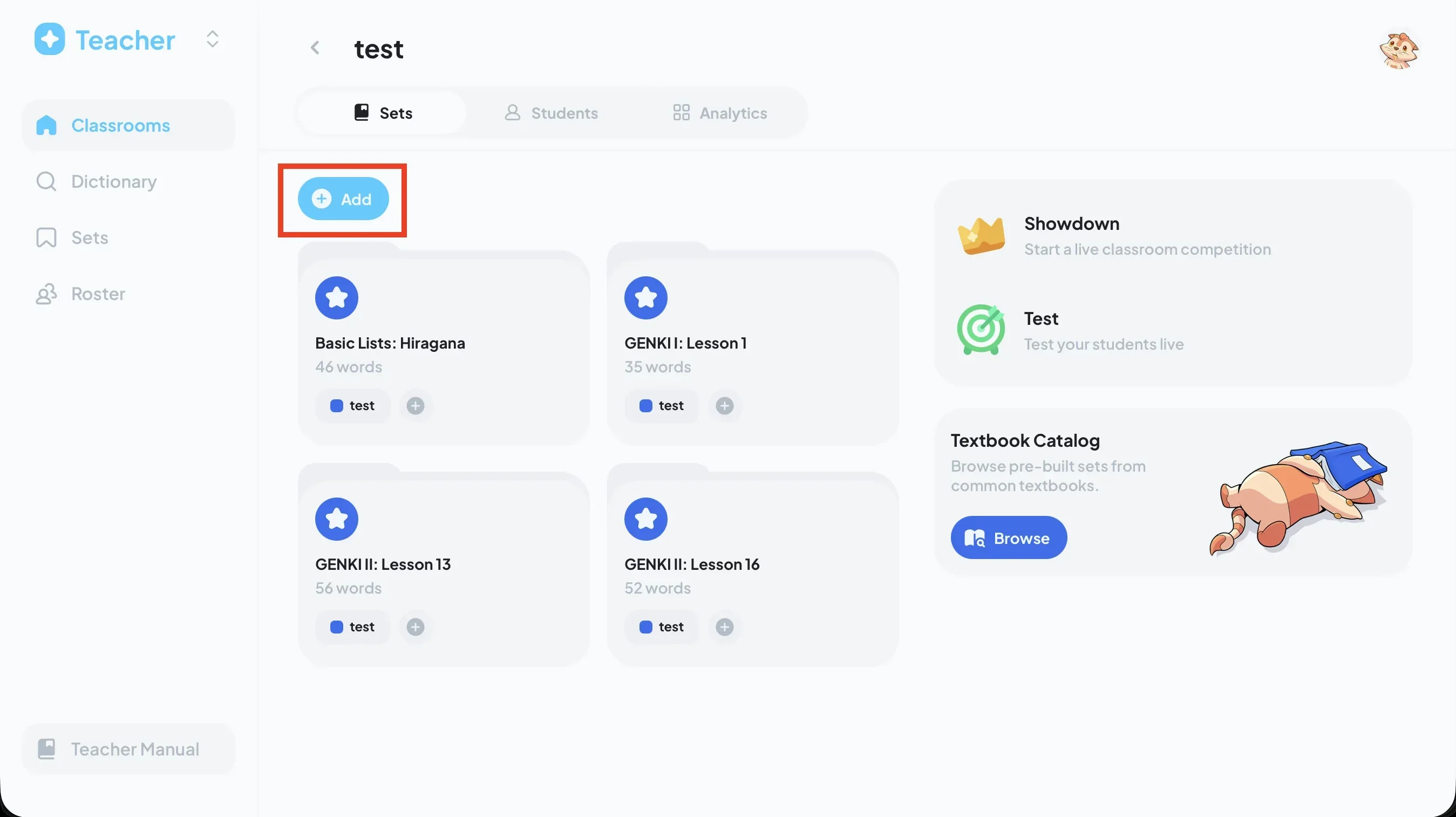
To add a vocabulary set to a classroom, open the classroom and press Add.
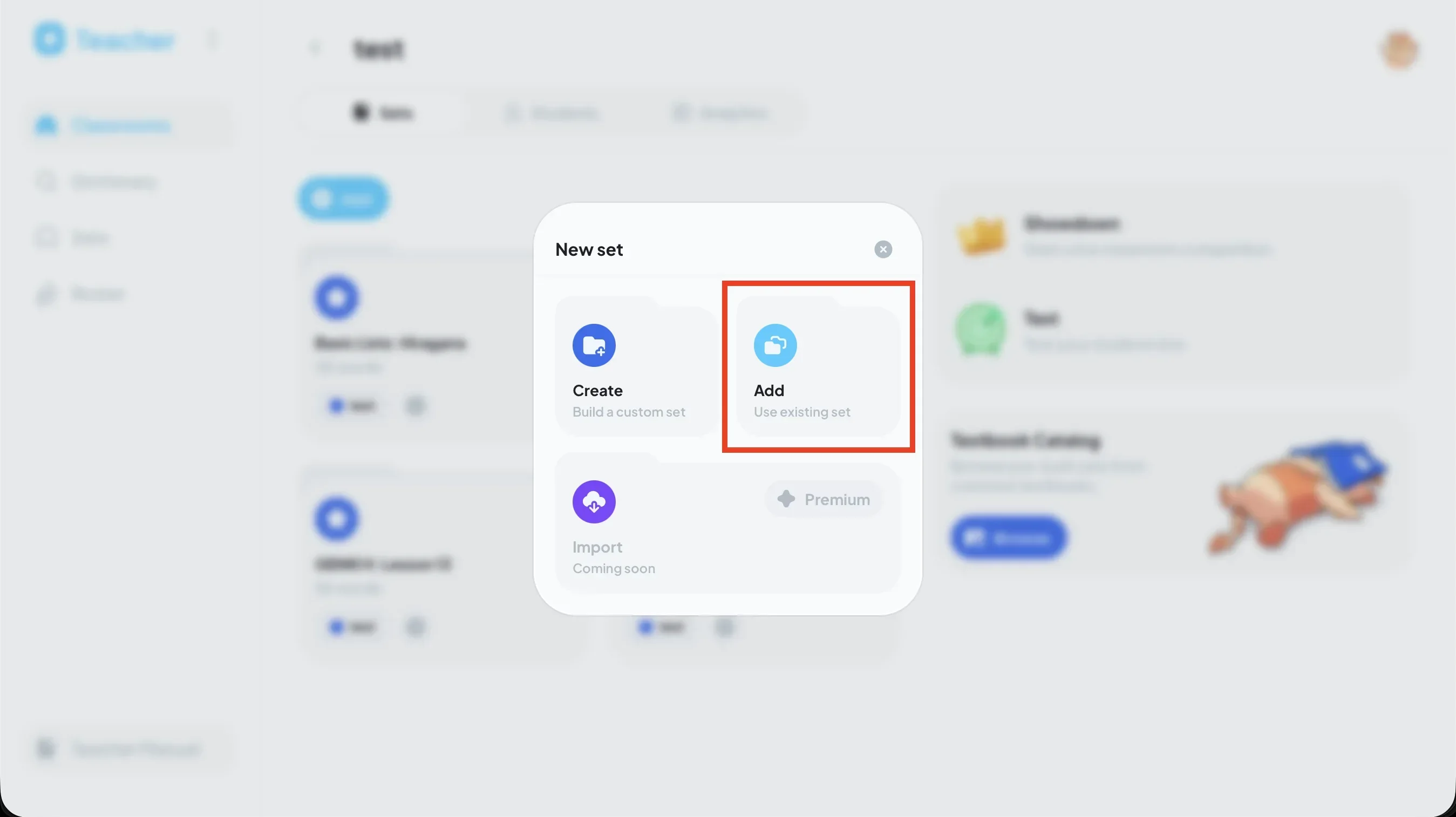
Choose Add existing set to assign a vocabulary set that already exists in your account.
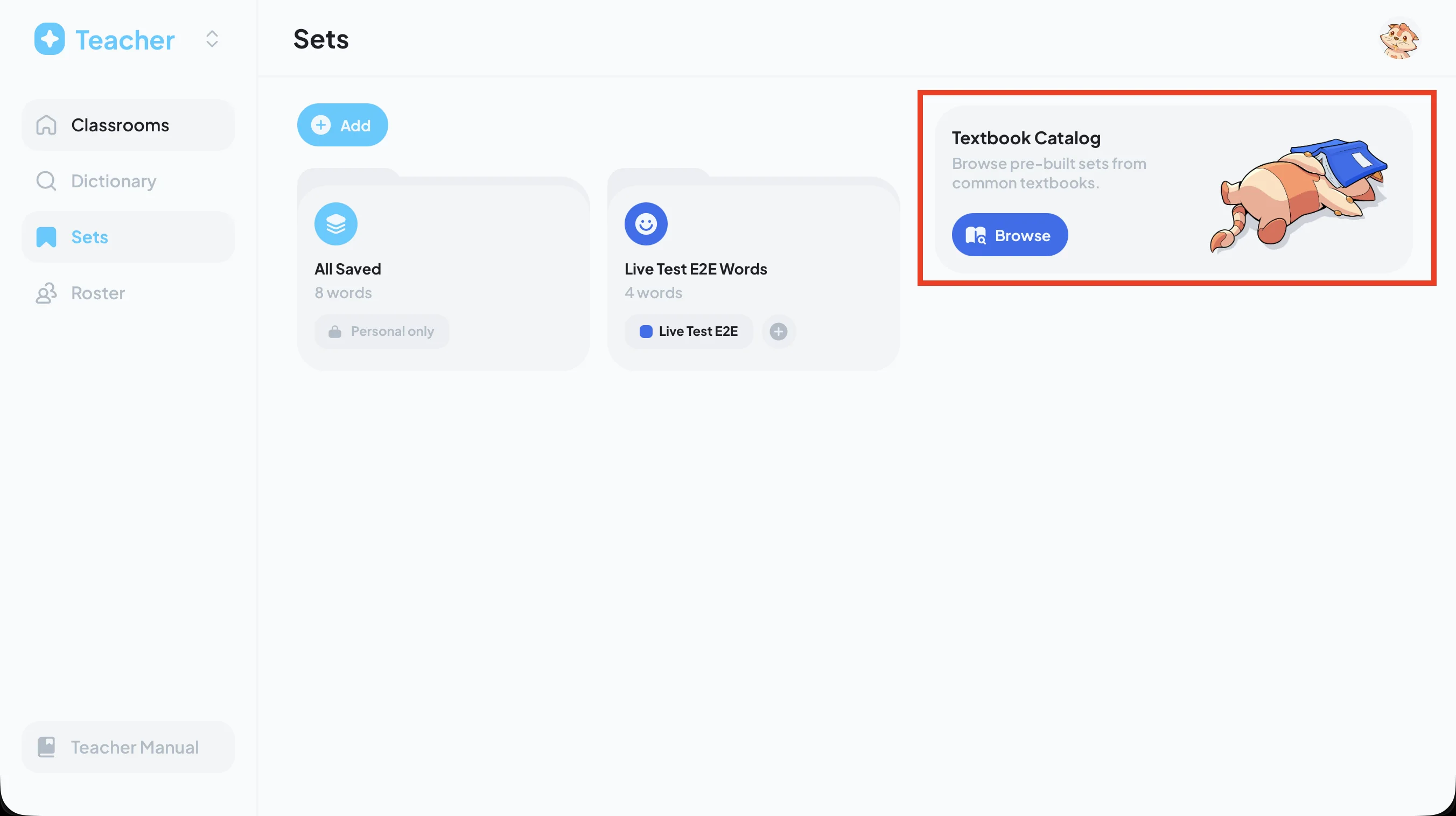
Textbook Catalog
Teachers can add textbook vocab sets from our textbook catalog on the sets page or within classrooms.
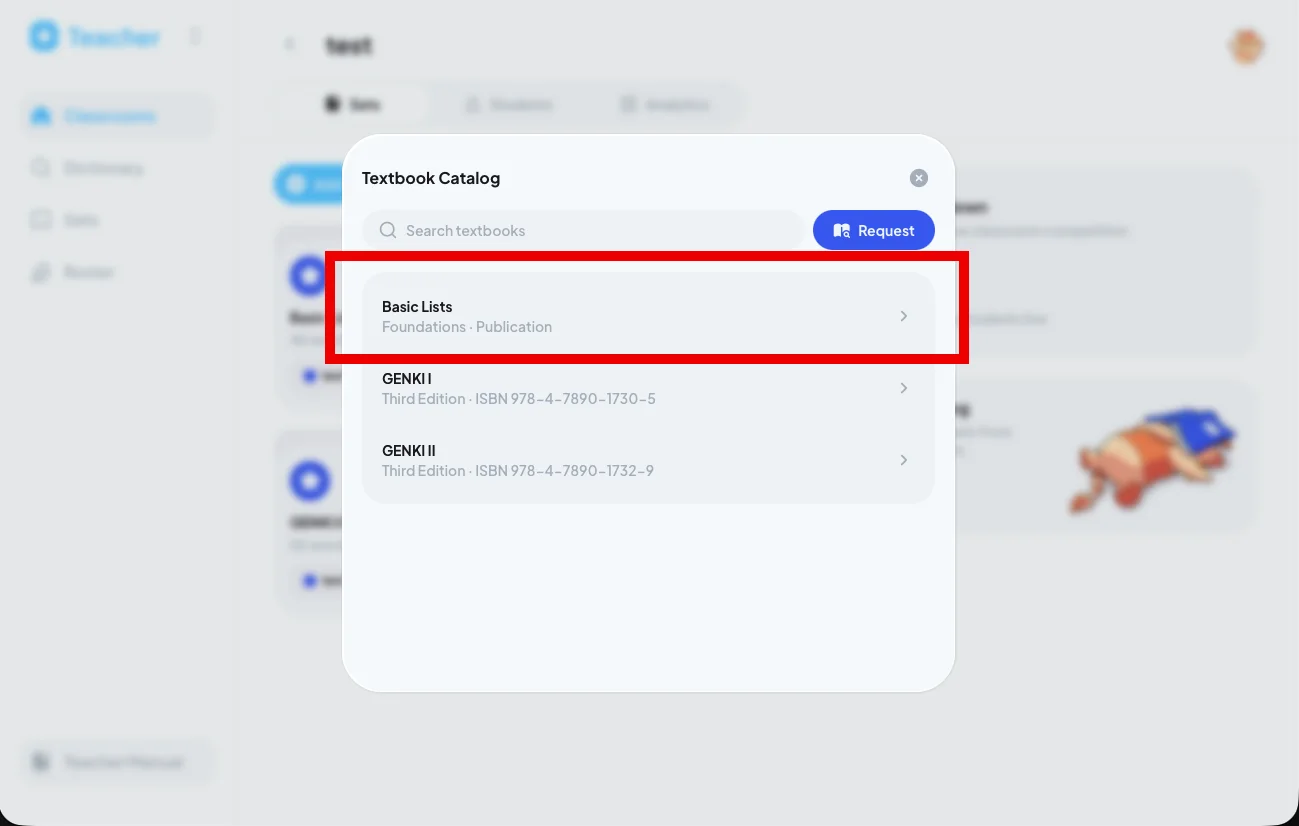
Browse pre-built sets from common textbooks and add the vocabulary you need.
Dictionary
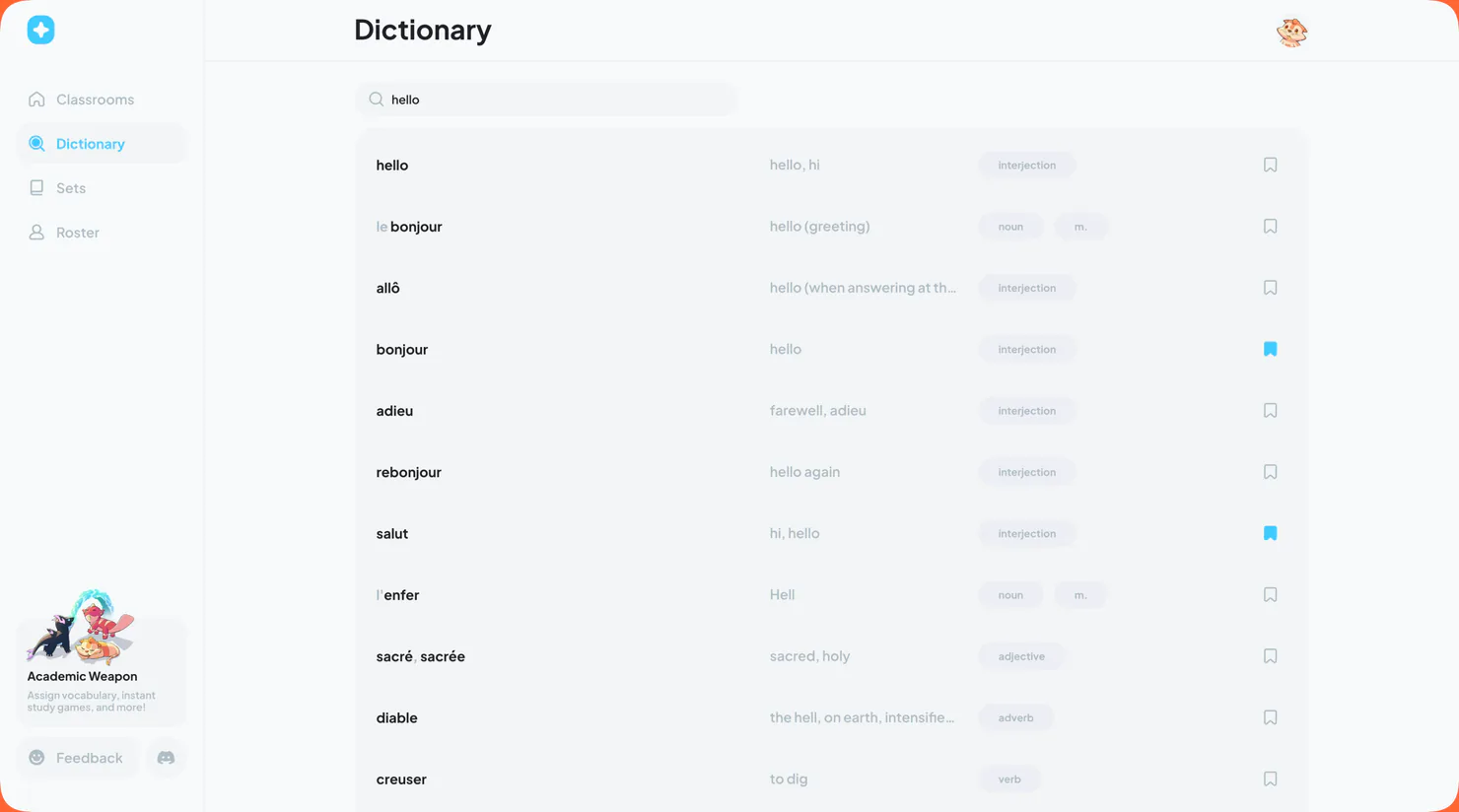
Use the dictionary when adding vocabulary to a set. Search for a specific word and tap the bookmark to save it instantly to the All Saved set. If you have multiple sets, tap an active bookmark to change where the word is saved.
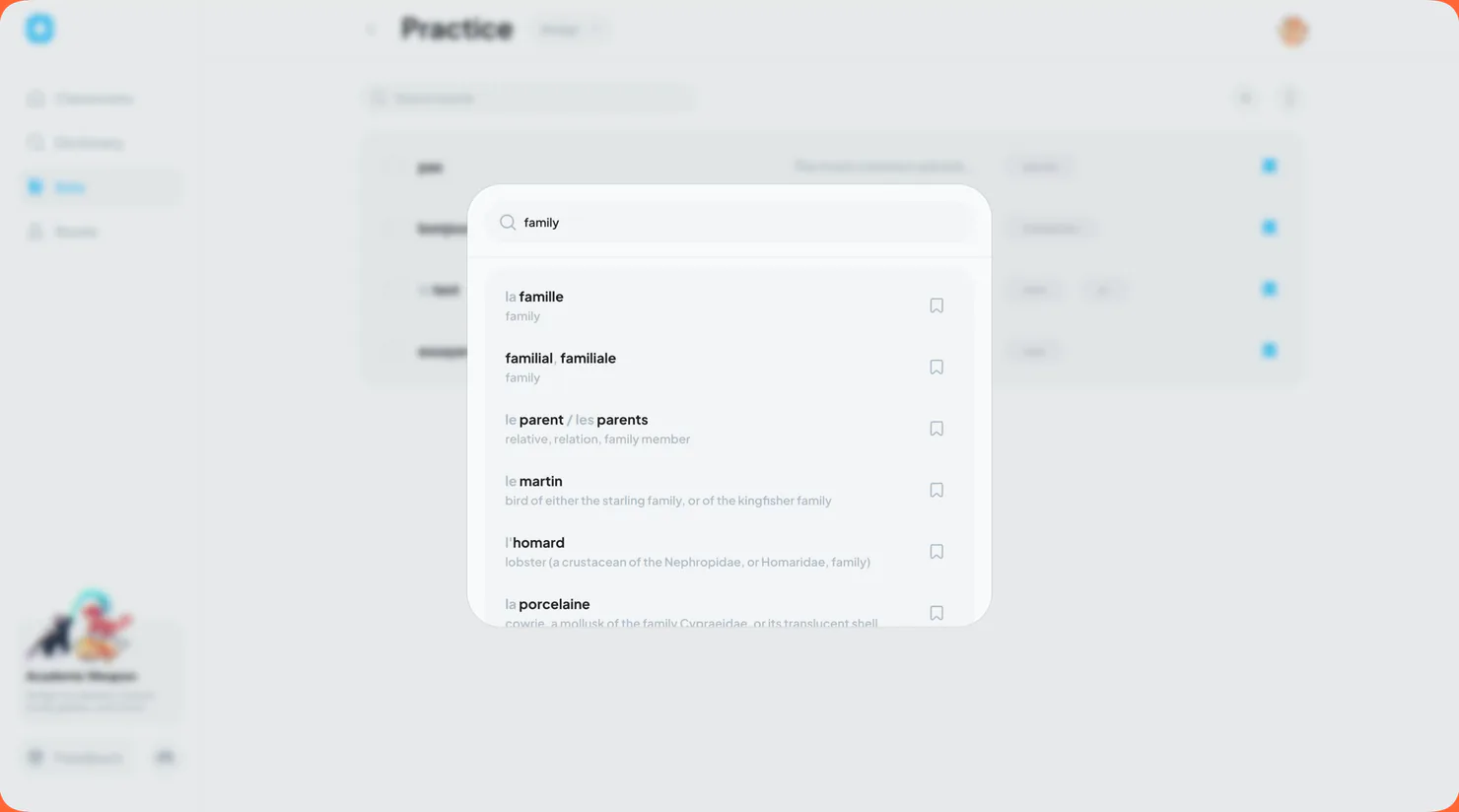
To save words directly to a custom set, open the set and tap the plus button to open the dictionary pop-up.
Student Roster
The Roster is your broader list of students across all classrooms. Add a student by searching for their Ludus username and pressing the Add button. In the Roster, you can view every classroom of yours that a student is enrolled in, as well as their seat type.
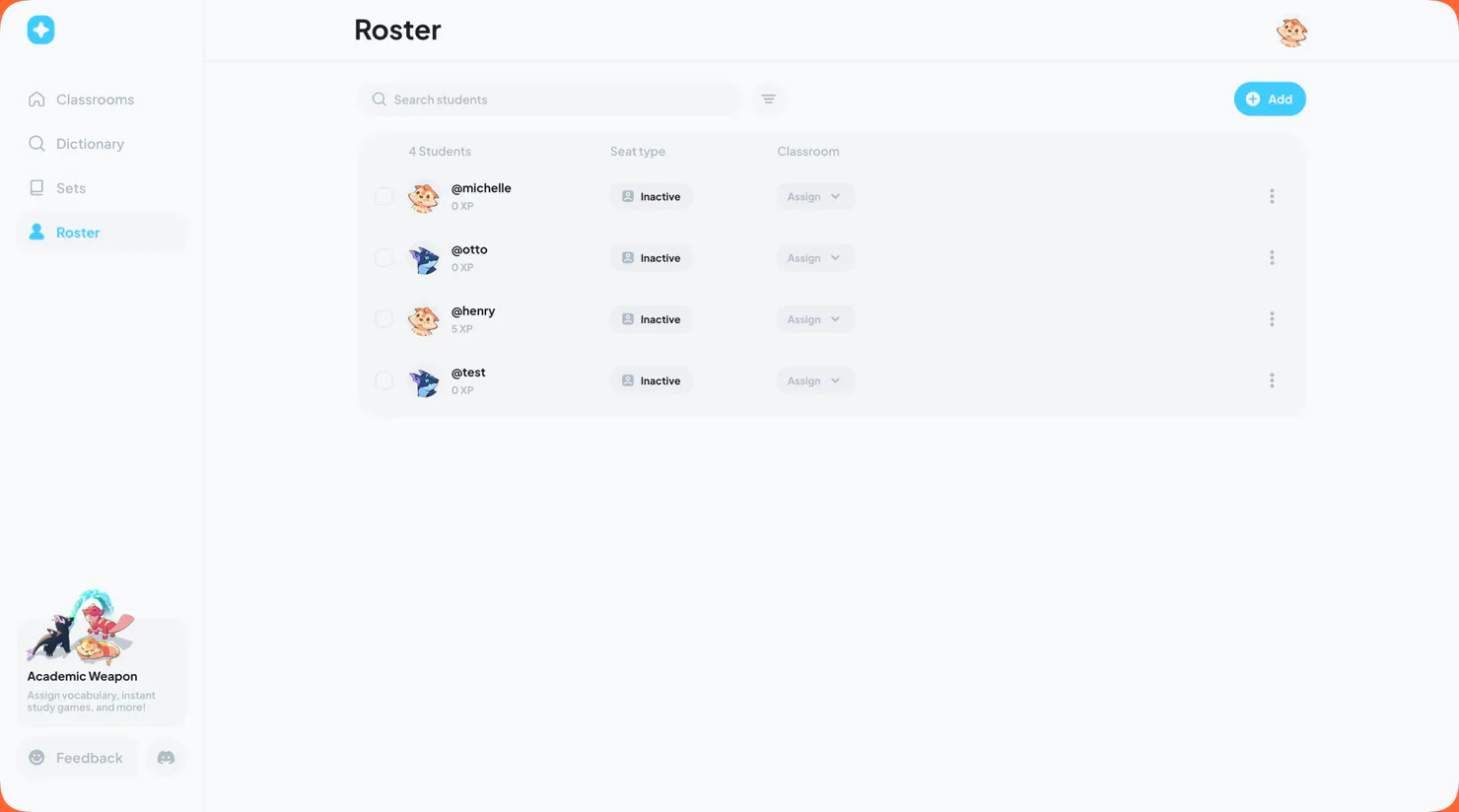
Students can remain in the Roster without an active classroom. This makes it easy to keep returning students connected, move them between terms, or remove one classroom assignment without deleting the full roster relationship.
Seat Management
A student uses one classroom seat while they are enrolled in at least one of your active classrooms. If the same student belongs to several of your classrooms, they still count as one unique student. Depending on your teacher plan, you will have a certain number of classroom seats.
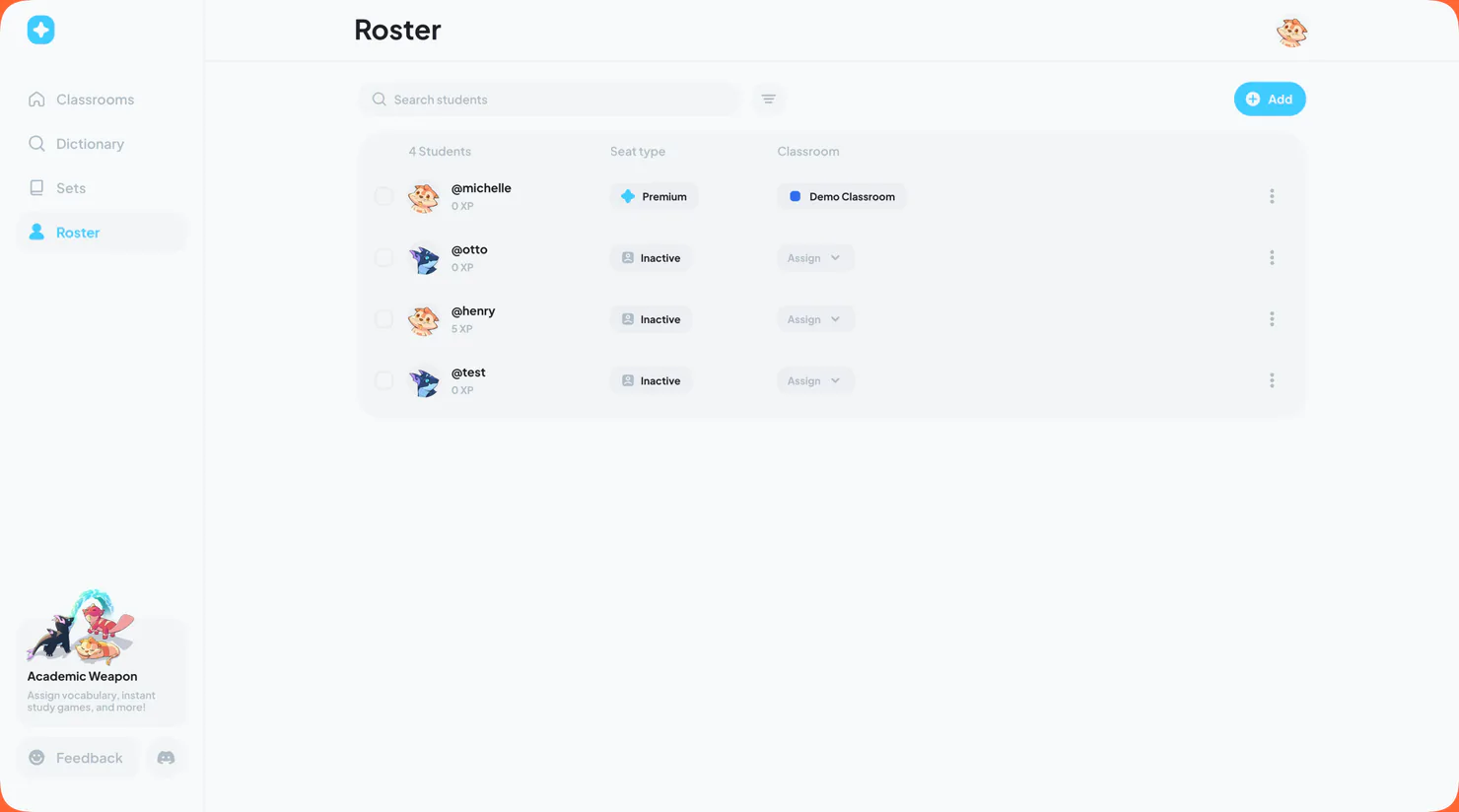
Roster-only students do not use classroom seats. When a class ends or a student moves, remove the classroom assignment rather than the entire roster entry if you want to keep that student available for a future class.